
Which Password Are They Asking Me For?
Don’t you hate it when you need to do something on your computer, and a little window pops up asking for your password to authorize access? It wouldn’t be so annoying if it were clear which password the computer was looking for: Account? User? PIN?
Here’s an explanation for when you need each type:
A Plain-Language Guide to PINs, Passwords, and User Accounts
Computers ask for logins for two very different reasons: to prove it's you sitting at the keyboard, and to connect you to your online account. Confusing the two is the most common source of frustration. This guide explains each type in plain terms and tells you exactly when your computer is likely to ask for it.
The Two Big Categories
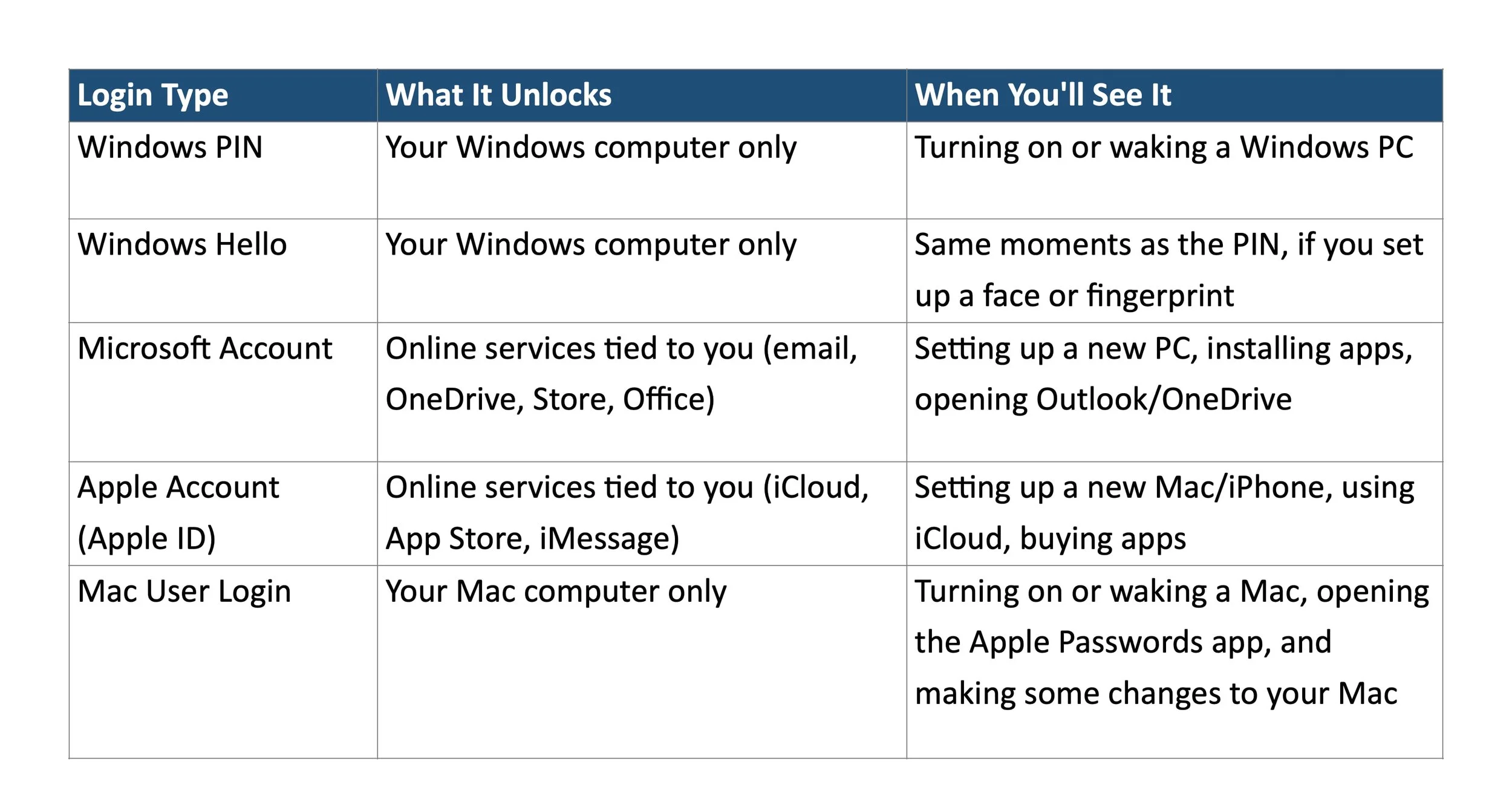
Device logins unlock the physical computer in front of you. Examples: Windows PIN, Windows Hello, and a Mac user password. These never leave your computer and don't require the internet.
Account logins connect you to an online service so it can recognize you across devices. Examples: Microsoft Account and Apple Account. These require an internet connection and the same login works on your phone, tablet, or another computer.
Windows PIN
A short number (usually 4 to 6 digits) that unlocks your Windows computer.
Only works on the one computer where you set it up. It will not work on any other device.
You'll be asked for it every time you turn on the computer or wake it from sleep.
It's actually safer than it sounds: the PIN is stored only on that machine, not sent over the internet.
If you forget it, you'll need your Microsoft Account password to reset it.
Windows Hello
The name Microsoft uses for signing in with your face, fingerprint, or a PIN, instead of typing a full password.
This is not a separate login — it's a faster way to do the same Windows PIN sign-in, using a camera or fingerprint reader if your computer has one.
You'll see it at the exact same moments as the PIN: turning on the computer or waking it up.
If your computer doesn't have a camera or fingerprint reader built in, you'll simply use the PIN instead.
Microsoft Account
An online account (an email address ending in outlook.com, hotmail.com, live.com, or any email you've registered with Microsoft) that connects you to Microsoft's services.
Used for: OneDrive file storage, the Microsoft Store, Outlook email, Office apps (Word, Excel), and Xbox.
You'll be asked for this when you first set up a new Windows computer, when installing or buying an app from the Microsoft Store, or when opening Outlook or OneDrive for the first time.
Unlike the PIN, this same login works on any computer, phone, or tablet — it follows you, not the device.
Occasionally Windows will show a sign-in box mid-task (for example, when OneDrive loses connection). This is your Microsoft Account asking to reconnect, not a security problem.
Apple Account (formerly called Apple ID)
Apple's version of the Microsoft Account. Apple renamed “Apple ID” to “Apple Account” in 2024, but it's the same thing — one email and password used across all your Apple devices.
Used for: iCloud (photos, backups, and file syncing), the App Store, iMessage, FaceTime, and buying music or movies.
You'll be asked for this when setting up a new Mac or iPhone, when downloading an app, or when turning on iCloud syncing.
Like the Microsoft Account, this follows you across devices — the same Apple Account works on your iPhone, iPad, and Mac.
Mac User Login
The password (or fingerprint, on Macs with Touch ID) that unlocks your Mac itself — Apple's equivalent of the Windows PIN.
Only works on the one Mac where the account was created.
You'll be asked for it every time you turn on the Mac or wake it from sleep.
This is separate from your Apple Account, even though the two are often set up together and can feel like one step.
You'll also be asked for it when opening the Apple Passwords app, or when installing/removing certain software or changing certain System Settings — but only when that action requires administrator permission. Everyday actions like dragging an app to the Trash won't prompt you.
The operative word here is user. These requests ask for the user’s password.
A Simple Way to Remember It
Ask yourself: “Am I unlocking this machine, or am I connecting to a service?”
Unlocking the machine → Windows PIN/Hello or Mac user login. Happens every time you sit down at that specific computer, make changes to the system, or access Apple Passwords.
Connecting to a service → Microsoft Account or Apple Account. Happens when setting up a device, installing apps, or using cloud features like iCloud or OneDrive.
A Note on Security
It's tempting to use the same simple password everywhere, but device logins and account logins protect different things. Your device login (PIN, Windows Hello, Mac password) only protects what's on that one computer. Your account login (Microsoft or Apple Account) protects your email, photos, and files stored online — and if someone guesses it, they can potentially get into all of your devices at once. For that reason, it's worth making your Microsoft Account or Apple Account password especially strong, and turning on two-factor authentication.